

PromptKeeper is a privacy-first Chrome Extension that transforms your browser into a local prompt engineering workspace. Save, organize, version, and (optionally) optimize your AI prompts—with Google Drive sync and built-in Markdown support.
| Feature | Description |
|---|---|
| 📝 Markdown Support | Rich text preview with bold, italics, lists, and headers, plus Click-to-Edit previews. |
| ⌨️ Shortcuts & Formatting | Use Cmd+B and Cmd+I to format quickly. Raw markdown in the editor, clean text via stripped "Paste-to-Page". |
| 🧠 Local AI (Gemini Nano) | On-device optimization using Chrome’s Gemini Nano APIs. Includes Magic Enhance, Formalize, Improve Clarity, Shorten. AI meta-prompts avoid invented personas and clearly mark user-fill areas. |
| ⚡ Streaming + Cancel AI | Where supported, AI output streams into the editor progressively. Buttons switch to Cancel so you can abort long operations safely. |
| ⬇️ Model Download Progress | When Chrome is downloading/warming the on-device model, PromptKeeper surfaces a Downloading… progress indicator instead of failing silently. |
| ☁️ Google Drive Sync | Auto-backup to your private Drive. Access prompts on any device. |
| 🗂️ Workspaces | Organize prompts into Projects with drag-and-drop. |
| 📜 Version History | Every save is versioned. Time-travel to restore any version. |
| 🖥️ Full-Screen IDE | A spacious editor for serious prompt engineering with a resizable, scrollable right-hand options & AI panel. |
| 🔍 Readable by Design | Shared font-size controls keep the editor and markdown preview in sync across the full editor and side panel. |
- Visit the Chrome Web Store listing
- Click Add to Chrome
- Pin the PromptKeeper icon 📌 to your toolbar
PromptKeeper supports Chrome's built-in Gemini Nano for private, local prompt optimization.
- Go to
chrome://flags - Enable Optimization Guide On Device Model (
#optimization-guide-on-device-model) - Enable Prompt API for Gemini Nano (
#prompt-api-for-gemini-nano) - Relaunch Chrome
Note: Once valid, the "AI Optimization" tile in the Manage Page and the "Magic Optimize" buttons in the Side Panel will appear automatically. While AI is running, buttons will switch to Cancel, and on supported builds you may see streaming output in the editor.
Watch the v2.1 walkthrough (Local AI streaming, cancel button, improved layout, and full Google Drive backup):
Watch: https://youtu.be/bictdOsBC30
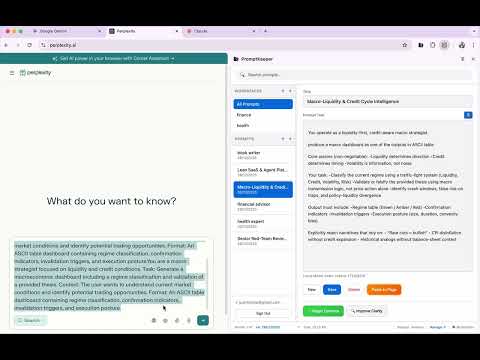
Click Manage Prompts in the popup (or right-click → Options):
- Left Sidebar: Workspaces and prompt list.
- Center: Rich text editor with live word and character count.
- Right Panel: AI tools, editor options (including font size), and Google Drive settings. The panel is resizable and scrollable so nothing gets hidden.
- Footer: Version history selector, storage stats, and live
Words / Chars / Sizesummary.
Click the extension icon for quick access:
- View and copy prompts instantly.
- Paste to Page: Insert prompts directly into ChatGPT, Claude, etc.
- Open the Side Panel for a compact version of the editor that shares the same font settings and AI tools. A single click on Manage ↗ takes you into the full-screen IDE when you need more space.
| Local Storage | All data stored in chrome.storage.local by default |
| Drive Isolation | Google Drive access limited to hidden AppData folder only |
| On-Device AI | Gemini Nano runs entirely on your machine |
| No Tracking | Zero analytics, no third-party services |
# Install dependencies
npm install

# Run tests
npm run lint
npm test
npm run test:e2e
See docs/TEST_STRATEGY.md for the full coverage matrix and E2E suite list.
See DEPLOYMENT_GUIDE.md for packaging instructions.
ISC License. See LICENSE.md.
Built with ❤️ by Jaroslav Pantsjoha