A standalone WiFi Mic Data Server With HTML/JS Based Spectrum Analyzer, VU Meters, and Waveform Viewers for the M5Stack Cardputer Adv.
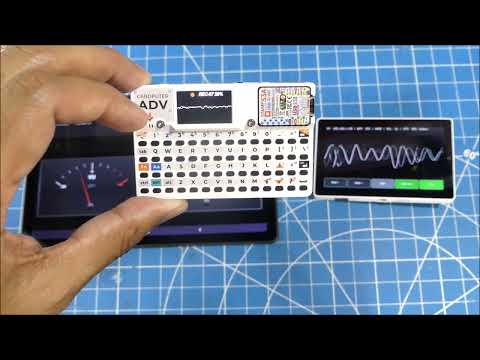
This project turns the M5Stack Cardputer Adv into a useful network-attached audio analysis tool. Unlike standard visualizers that only show graphics on the device's small screen, this firmware also contains a Web Server. It captures raw audio from the built-in microphone, processes it, and streams the raw PCM data over WiFi to any connected client (Smartphone, PC, Tablet) along with serving basic visualization webapps.

The device also serves basic Web Dashboards containing:
-
Vintage Analog VU Meters with realistic ballistics and physics.
-
Spectrum Visualizer (64-band FFT) with logarithmic scaling.
-
Waveform Visualizer with simulated R/L channels.
-
Simulated Audio Cassette with LED style VU meters.

This project was developed by modifying the standard M5Stack microphone example sketch, with "vibe coding" assistance from Gemini 3 Pro to build out the web server, physics-based VU meters, and FFT spectrum analysis features. Overall it does a good job of serving MIC audio data for the creation of web-based audio visualizer tools, provided low-latency/stereo inputs are not a requirement.
The system uses a Client-Server Polling architecture to ensure somewhat low latency (~30 ms) visualization on remote screens provided the number of clients is 5 or less, based on testing.
Note: If you use Chrome and want to make use of the data API for web pages not loaded directly from local filesystem (i.e using webserver) you will need to disable "Local Network Access Checks" under the "chrome://flags/" tab, otherwise the connection will be blocked. Firefox doesn't seem to have this issue.
-
Dual Operation: Works standalone (on-screen waveform) and networked (web dashboard) simultaneously.
-
High-Speed Streaming: Serves raw audio samples at ~25-50 FPS.
-
Web Consoles:
-
Change themes (Dark, Light, Cyber Blue, Matrix Green).
-
Switch between LED Bar and Analog Needle styles.
-
Adjustable gain (0.5x to 12x).
-
Stereo Simulation (adds jitter to mono signal for visual width).
-
-
Hardware Controls: Adjust scaling and noise filters directly from the Cardputer keyboard.
-
SD Card Configuration: Load WiFi credentials from a text file (no recompiling needed to move networks).
-
M5Stack Cardputer Adv (ESP32-S3)
-
Micro SD Card (Formatted FAT32) - Optional
-
Install the Arduino IDE.
-
Add M5Stack to the Board Manager:
-
Go to
File > Preferences. -
Add this URL:
https://m5stack.oss-cn-shenzhen.aliyuncs.com/resource/arduino/package_m5stack_index.json
-
-
Go to
Tools > Board > Boards Manager, search for M5Stack, and install. -
Select the board:
Tools > Board > M5Stack Arduino > M5Cardputer. -
Install Libraries (via
Sketch > Include Library > Manage Libraries):-
M5Cardputer
-
M5Unified
-
You have two options for setting up WiFi:
Option A: SD Card (Recommended for Portability)
Create a file named config.txt on the root of your SD card. This allows you to change networks without recompiling.
-
Line 1: WiFi SSID
-
Line 2: WiFi Password
Example config.txt:
MyHomeNetwork
SuperSecretPassword123
Option B: Hardcoded (No SD Card Required)
If you don't have an SD card, you can hardcode your credentials directly into the firmware.
-
Open
CardputerMicTalk.ino. -
Locate the fallback settings near the top:
// --- WI-FI SETTINGS (FALLBACK) --- String wifi_ssid = "YOUR_SSID_HERE"; String wifi_pass = "YOUR_PASSWORD_HERE"; -
Upload the sketch.
-
Open
CardputerMicTalk.inoin Arduino IDE. -
Ensure
webapp.handspectrum.hare in the same folder (tab). -
Click Upload.
Once the device is running, it will display a red recording circle and its IP Address (or Host ID) on the screen.
| Button / Key | Action | Description |
|---|---|---|
| Btn G0 (Main Button) | HOLD | Adjust Noise Filter (NF). Increases the squelch floor to ignore background noise. Cycle wraps 0-255. |
| Btn G0 (Main Button) | CLICK | Playback. Stops recording and plays the last ~3 seconds of audio through the speaker. For Testing Only. |
| Arrow Up / '; ' | PRESS | Increase Scaling Factor (SF). Boosts the signal sent to the web app (1x -> 12x). |
| Arrow Down / '.' | PRESS | Decrease Scaling Factor (SF). Lowers the signal gain. |
| Q | PRESS | Display % CPU Usage. Displays the relative % CPU usage based on a 100% being the main loop taking more than 40ms (25 frames/s on client) to run. |
-
REC-XX: Shows the last segment, host number, of the device's IP address.
-
NN%: Shows current battery level.
-
NF: Current Noise Filter level.
-
SF: Current Scaling Factor level.
-
CPU: Current Percent CPU Usage (relative)
-
Look at the Cardputer screen to get the IP address (e.g.,
192.168.1.57). -
Open a browser on a computer or phone connected to the same WiFi.
-
Dashboards:
-
VU Console:
http://192.168.1.57/(Analog/Digital VU meters). View -
Spectrum Visualizer:
http://192.168.1.57/sv(64-Band FFT Spectrum Visualizer). View -
Combined VU Meter and Spectrum Visualizer:
http://192.168.1.57/vusA combined VU Meter and Spectrum Visualizer. View -
Waveform Console:
http://192.168.1.57/wf(Waveform Display). View -
Audio Cassette:
http://192.168.1.57/vucA simulated audio cassette with R/L LED style VU meters. View -
Raw Data API:
http://192.168.1.57/data(JSON output).
-
These are some nice to have features
- More Professional and Feature Rich VU/Spectrum Web-apps. Using vibe-coding to create those pages definately shows the limit of the current LLM models.
-
Product Page: M5Stack Cardputer Adv Shop
-
Documentation: Cardputer Adv Wiki
-
Library: M5Cardputer GitHub
This project is open-source. Feel free to modify and distribute.