A Jenkins plugin that allows parameters to be populated dynamically using JSON data from configurable sources.


The JSON Parameter Plugin introduces a new parameter type for Jenkins jobs: JSON Parameter. It enables jobs to dynamically fetch, parse, and populate values from JSON sources at runtime or configuration time.
Supported JSON sources:
- ✅ Jenkins Config File Provider (folder-based or global)
- ✅ Remote HTTP endpoints
You can use JSONPath expressions – including filters, regex, and conditions. See Advanced JSONPath Examples.
Install via Jenkins Plugin Manager:
Manage Jenkins » Plugins » Available plugins » JSON Parameter
Requires:
When configuring a job:
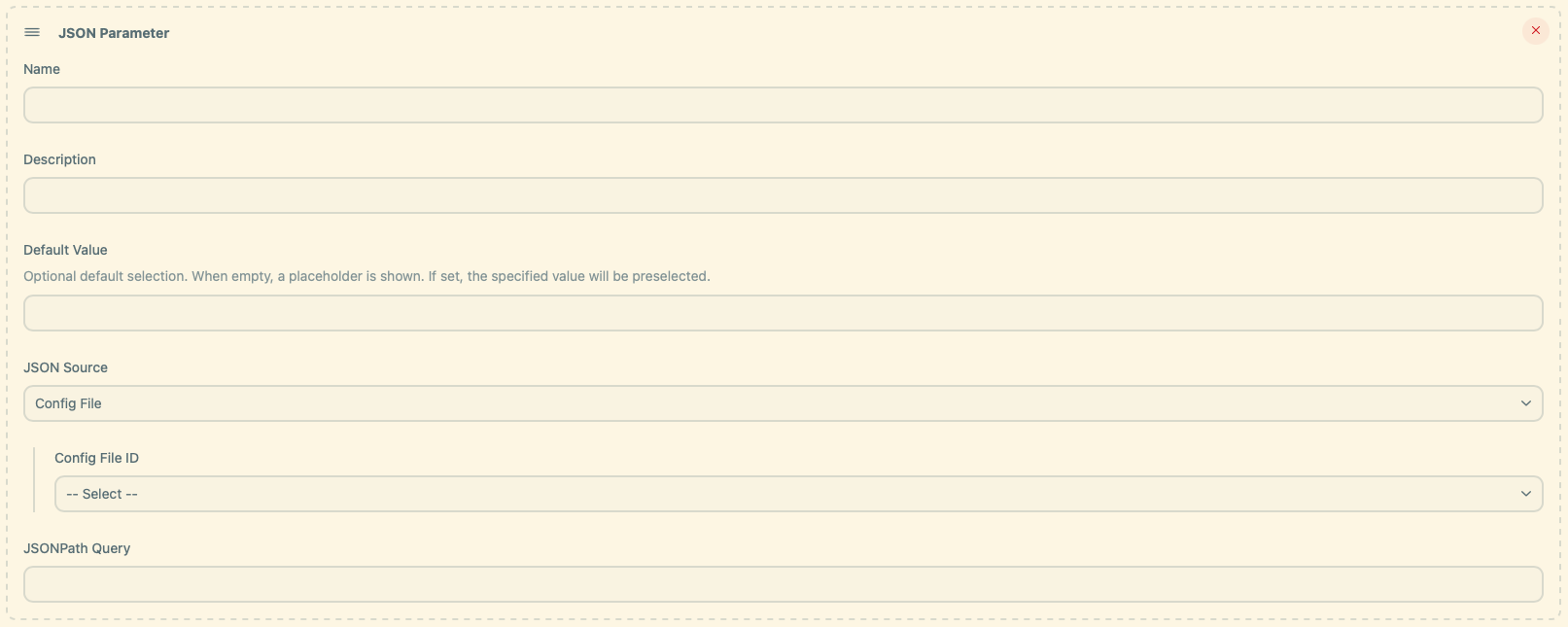
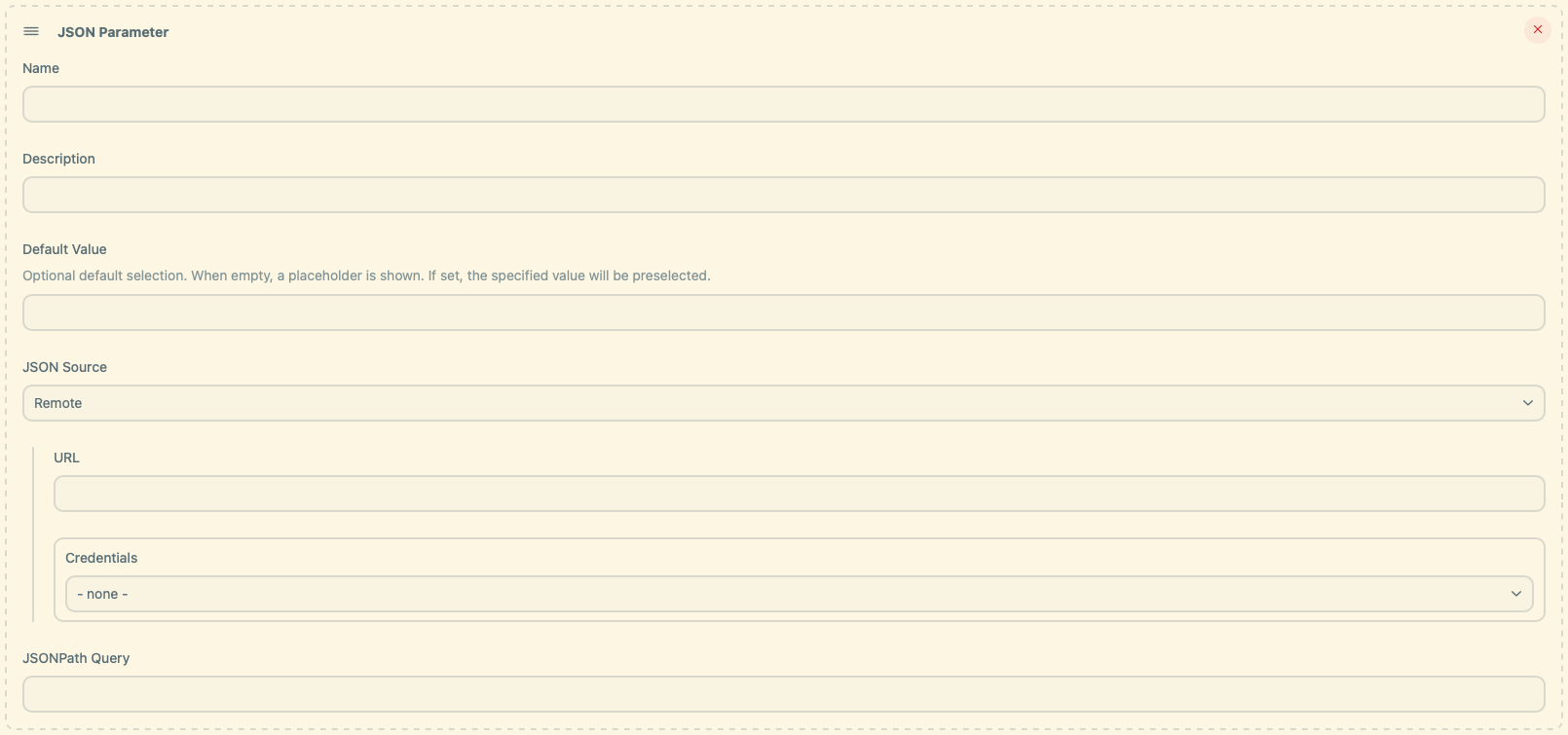
- Click "Add Parameter" → "JSON Parameter"
- Fill in the following fields:
- Name: Internal parameter identifier
- Description (optional)
- Default Value (optional)
- Query: JSONPath expression (e.g.,
$[*].name)
- Provide the Config File ID
- Jenkins resolves it hierarchically:
- Looks in the current folder and its parents
- Falls back to global if not found
- Enter a full API URL that returns JSON
- Select a Credentials ID if authentication is required:
- Username/Password → Basic Auth
- Secret Text → Bearer token
📦 Sample JSON
[
  {
    "name": "Alpha"
  },
  {
    "name": "Beta"
  }
]
🔧 Example 1: Folder-level config with placeholder
parameters {
    jsonParam(
            name: 'JSON_PARAM',
            description: 'List data from JSON source.',
            defaultValue: '',
            query: '$[*].name',
            source: configFileSource(configId: 'my-id')
    )
}
➡️ Rendered dropdown:
["-- Choose an option --", "Alpha", "Beta"]🔧 Example 2: Global config with preselected default
parameters {
    jsonParam(
            name: 'JSON_PARAM',
            description: 'List data from JSON source.',
            defaultValue: 'Alpha',
            query: '$[*].name',
            source: configFileSource(configId: 'my-id')
    )
}
➡️ Rendered dropdown:
["Alpha", "Beta"]🔧 Example 3: HTTP JSON source
parameters {
    jsonParam(
            name: 'JSON_PARAM',
            description: 'List data from JSON source.',
            defaultValue: 'Beta',
            query: '$[*].name',
            source: remoteSource(credentialsId: 'my-id', url: 'http://localhost:8080/api/data')
    )
}
➡️ Rendered dropdown:
["Beta", "Alpha"]🔧 Example 4: Reference another parameter
Sometimes you want the available options to depend on the value of another parameter.
Use jsonParamRef with a JSONPath query containing a placeholder like ${OTHER_PARAM}.
📦 Sample JSON
[
  { "name": "Alice", "email": "[email protected]" },
  { "name": "Bob",   "email": "[email protected]" }
]
parameters {
jsonParam(
name: 'USERS',
description: 'List of available users',
defaultValue: 'Alice',
query: '$[*].name',
source: configFileSource(configId: 'users-json')
)
jsonParamRef(
name: 'EMAILS',
description: 'Email addresses filtered by selected user',
defaultValue: '',
query: '$[?(@.name == "${USERS}")].email',
ref: 'USERS',
source: configFileSource(configId: 'users-json')
)
}➡️ Rendered dropdown:
depends on the selected user, e.g.
{
  "files": [
    {
      "type": "json",
      "value": "file1.json"
    },
    {
      "type": "yaml",
      "value": "file2.yaml"
    },
    {
      "type": "properties",
      "value": "file3.properties"
    },
    {
      "type": "yaml",
      "value": "file4.yml"
    },
    {
      "type": "json",
      "value": "file5.json"
    }
  ]
}
🔧 Query 1: Get JSON files
'$.files[?(@.type == "json")].value'➡️ Rendered dropdown:
["-- Choose an option --", "file1.json", "file5.json"]🔧 Query 2: Get files and exclude Properties files
'$.files[?(@.type != "properties")].value'➡️ Rendered dropdown:
["-- Choose an option --", "file1.json", "file2.yaml", "file4.yml", "file5.json"]🔧 Query 3: Get YAML files by Regex
'$.files[?(@.value =~ /.*\\.ya?ml$/)].value'➡️ Rendered dropdown:
["-- Choose an option --", "file2.yaml", "file4.yml"]🔧 Query 4: Get YAML files using the contains operator
'$.files[?(@.value contains "yaml")].value'➡️ Rendered dropdown:
["-- Choose an option --", "file2.yaml"]🔧 Query 5: Get YAML and Properties files combined
'$.files[?(@.value =~ /.*\\.ya?ml$/ || @.type == "properties")].value'➡️ Rendered dropdown:
["-- Choose an option --", "file2.yaml", "file3.properties", "file4.yml"]Refer to our contribution guidelines
Licensed under the MIT LICENSE


![@dependabot[bot]](https://avatars.githubusercontent.com/in/29110?s=64&v=4)

