Examples
In this module, the main class type is AgoraClient. To create a basic instance of this class, you only need your Agora App Id (Refer to this article to generate your App Id) and a channel name:
final AgoraClient client = AgoraClient(
  agoraConnectionData: AgoraConnectionData(appId: "<--App Id-->", channelName: "test"),
  enabledPermission: [Permission.camera, Permission.microphone],
);
From here, place the AgoraVideoViewer and AgoraVideoButtons(optional) class inside your MaterialApp . The AgoraVideoViewer and AgoraVideoButtons class takes the object of AgoraClient as an arguement.
@override
Widget build(BuildContext context) {
  return MaterialApp(
    home: Scaffold(
      body: SafeArea(
        child: Stack(
            children: [
              AgoraVideoViewer(client: client),
              AgoraVideoButtons(client: client)
            ],
        ),
      ),
    ),
  );
}The process is very similar for adding live video streaming to your app. Additionaly, you need to pass the the channel type and client role in the AgoraChannelData class which can be called from the AgoraClient.
final AgoraClient client = AgoraClient(
    agoraConnectionData: AgoraConnectionData( appId: "<--App Id-->", channelName: "test" ),
    enabledPermission: [ Permission.camera, Permission.microphone ],
    agoraChannelData: AgoraChannelData( channelProfile: ChannelProfile.LiveBroadcasting, clientRole: ClientRole.Broadcaster ),
  );
You can also change the many other channel properties using the AgoraChannelData class. Have a look at the documentation to know more.
Agora UIKit for Flutter automatically generates tokens for you such that you just have to provide the link to your deployed token server. Have a look at this guide to follow the steps on how to generate your own token server. This can be summarized in your AgoraClient class as:
final AgoraClient client = AgoraClient(
  agoraConnectionData: AgoraConnectionData(
    appId: '<--App Id--->',
    channelName: 'test',
    tokenUrl: 'https://example-agora-token-server.com'
  ),
  enabledPermission: [Permission.camera, Permission.microphone],
);
Optionally, you can also add UID, area code and/or a temporary token using the AgoraConnectionData class. Have look at the documentation to know more.
You can access most of the event handlers provided by the Agora RTC Engine SDK by using the AgoraEventHandlers class inside your AgoraClient. You can use this class to execute a function as that event occurs during the call.
final AgoraClient client = AgoraClient(
    agoraConnectionData: AgoraConnectionData( appId: "<--App Id-->", channelName: "test"),
    enabledPermission: [ Permission.camera, Permission.microphone ],
    agoraEventHandlers: AgoraEventHandlers(
      userJoined: (uid, elapsed) => print("USER JOINED: $uid"),
      userOffline: (uid, reason) => print("USER OFFLINE REASON $reason"),
    ),
);AgoraVideoViewer is a customizable video class for local and remote views that adjusts dynamically as per the number of users in the channel. As of now, there are two default layouts Grid and Floating.
// Floating Layout
AgoraVideoViewer(
  client: client,
  layoutType: Layout.Floating,
),
// Grid Layout
AgoraVideoViewer(
  client: client,
  layoutType: Layout.Grid,
),Features of the AgoraVideoViewer class include :
- Adjust the UI dynamically as the user joins/leaves.
- Focus on the Active Speaker (Floating layout)
- Pin local/remote users to the main screen (Floating layout)
- Show state of camera and microphone of local and remote users.
- Customize view that should be displayed when the remote video is turned off.
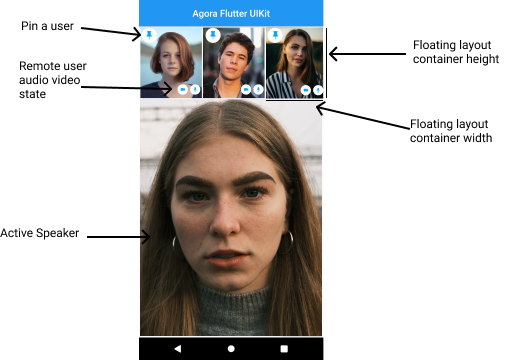
AgoraVideoViewer(
  client: client,
  layoutType: Layout.Floating,
  floatingLayoutContainerHeight: 100,
  floatingLayoutContainerWidth: 100,
  showNumberOfUsers: false,
  showAVState: true,
),
You can read more about the AgoraVideoViewer class in the documentation.
By default, all the buttons are added (enable/disable camera, switch camera, mute/unmute microphone). The set of buttons is created using the parameter enabledButtons. enabledButtons is a list of type BuiltInButtons. You can use enabledButtons method to remove any of the default button or change their order.
AgoraVideoButtons(
  enabledButtons: [
    BuiltInButtons.ToggleMic,
    BuiltInButtons.CallEnd,
    BuiltInButtons.SwitchCamera
  ],
)AgoraVideoButtons class is a completely customizable class to add, remove and customize the buttons in your layout. You can use the extraButtons method to provide a list of buttons that you want to add according to your styling.
AgoraVideoButtons(
  enabledButtons: [
    BuiltInButtons.ToggleMic,
    BuiltInButtons.CallEnd,
    BuiltInButtons.SwitchCamera
  ],
  extraButtons: [
    RawMaterialButton(
      onPressed: () {
        setState(() {
          isVisible = !isVisible;
        });
      },
      child: Container(
        padding: const EdgeInsets.all(12.0),
        decoration: BoxDecoration(
          shape: BoxShape.circle,
          color: isVisible ? Colors.white : Colors.blue),
          child: isVisible
              ? Icon(
                  Icons.visibility,
                  color: Colors.blue,
                  size: 20,
                )
              : Icon(
                  Icons.visibility_off,
                  color: Colors.white,
                  size: 20,
                ),
            ),
        )
    ],
)
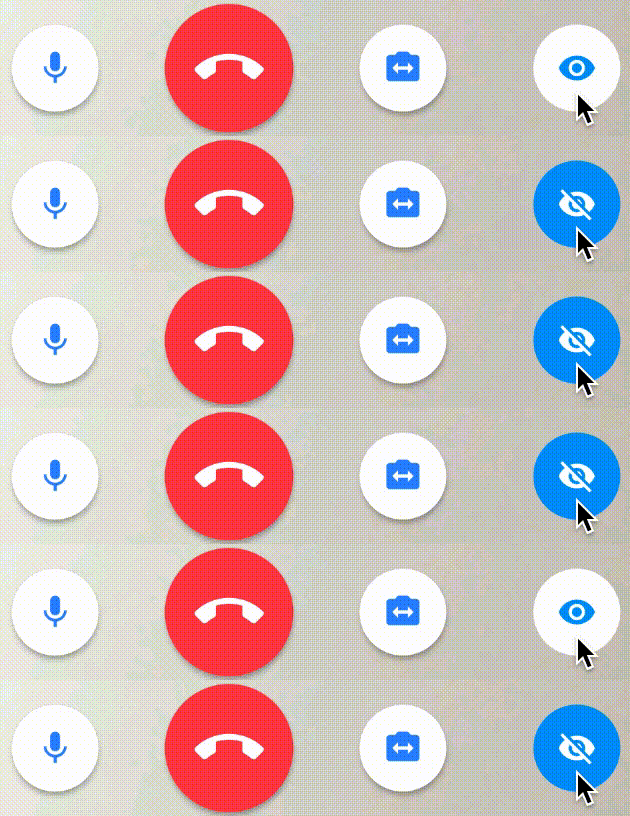
To know about more customizations present in the AgoraVideoButtons class please refer to the documentation.
You can add cloud recording to your Agora UIKit by enabling the cloudRecordingEnabled: true parameter in the AgoraVideoButtons class. You will need to create a customer ID and secret which you can learn about here. And lastly you will need to create a cloud recording server which you can do here
final AgoraClient client = AgoraClient(
  agoraConnectionData: AgoraConnectionData(
    appId: '<--App Id-->',
    channelName: 'test',
    cloudRecordingUrl: '<--Cloud Recording Url-->',
  ),
);